
10 Best Free Productivity Applications.

We love free software. We especially love free software that helps us get things done faster and better.  Here is our current list of what we feel to be the absolute best free applications.

  1. Google Docs - Google Docs is a suite of products that lets you create different kinds of online documents, work on them in real time with other people, and store your documents and your other files — all online, and all for free. With an Internet connection, you can access your documents and files from any computer, anywhere in the world. https://docs.google.com/#home

  2. WordPress
    Wordpress.com – You can get a blog started in less time than it takes you to read this sentence. All you need is an email address. You’ll get your own WordPress.com address (like you.wordpress.com, you can switch to a custom address later if you’d like), a selection of great free and customizable designs for your blog (we call them themes), 3 gigabytes of file storage (that’s about 2,500 pictures!) and all the other great features listed here. You can blog as much as you want for free, your blog can be public to the world or private for just your friends. http://www.wordpress.com
    WordPress.net – WordPress is web software you can use to create a beautiful website or blog. We like to say that WordPress is both free and priceless at the same time. The core software is built by hundreds of community volunteers, and when you’re ready for more there are thousands of plugins and themes available to transform your site into almost anything you can imagine. Over 60 million people have chosen WordPress to power the place on the web they call “home”. http://www.wordpress.net

  3. Handbreak - HandBrake is a general-purpose, open-source, cross-platform, multithreaded video transcoder software application. HandBrake was originally developed by titer in 2003 as a general-purpose video transcoder to make ripping a film from a DVD to a data storage device easier. Since then, it has undergone many changes and revisions and become widely popular amongst film enthusiasts. http://handbrake.fr/details.php

  4. Join.me - Instant screen sharing and web conferencing. Get everybody on the same page, when they’re not in the same room, instantly. Review documents and designs. Train staff. Demo products or just show off. join.me is a simple screen sharing tool for meetings on the fly. 250 viewers, share control, multi-monitor, chat, send files, share multiple monitors, chat and send files. - https://join.me/
  5. Free Video Email – If a Picture’s Worth a Thousand Words… Then a Video is Priceless! One thing’s for sure … it’s worth more than just plain text. And now, WowWe offers you the opportunity to use cutting-edge video email for FREE! You can bring your email communications to life what you communicate in a video is miles past what can be said with the written word. Put simply, a Free vMail account allows you to pack more into what you’re communicating. You can use your vMail account for personal and family communications, or even to promote a business. Any computer with Internet access and a web cam can now become a powerful video communication tool targeting just the right message to just the right people. So get started today… after all, it’s totally free! http://mediamediainc.iwowwe.com/free-video-email.html
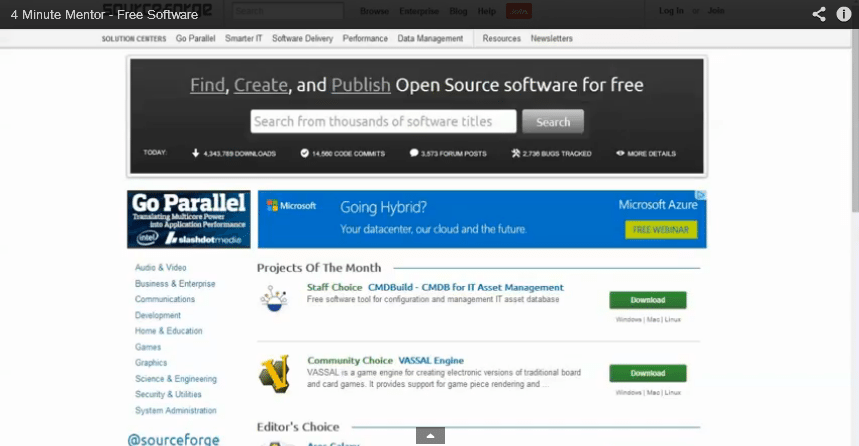
  6. Audacity is a free, easy-to-use and multilingual audio editor and recorder for Windows, Mac OS X, GNU/Linux and other operating systems. You can use Audacity to: Record live audio, Convert tapes and records into digital recordings or CDs, Edit Ogg Vorbis, MP3, WAV or AIFF sound files, Cut, copy, splice or mix sounds together, Change the speed or pitch of a recording and more! http://audacity.sourceforge.net/

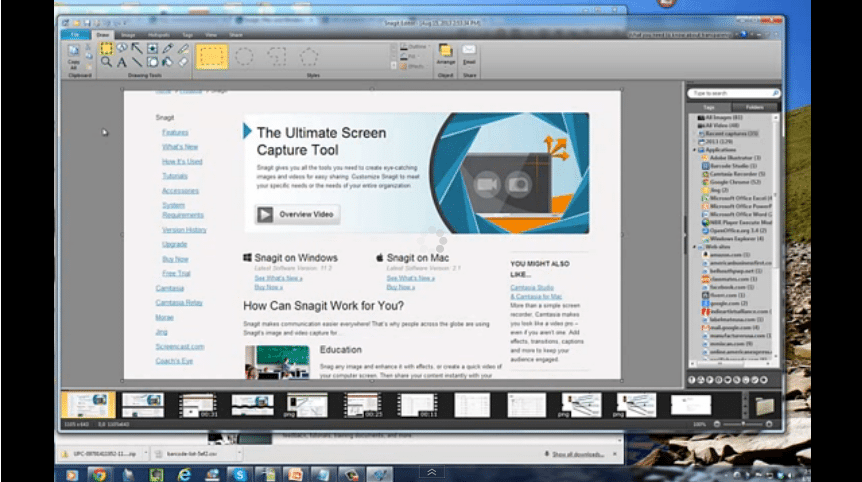
  7. Jing - Share Ideas Instantly. Simple and FREE, Jing is the perfect way to enhance your fast-paced online conversations. Create images and videos of what you see on your computer screen, then share them instantly! For Business: Add notated screenshots to all your online conversations, or create a quick tutorial video you can share with the entire company. Get everyone on the same page with Jing. For Education: Give your students the information they need, when they need it. Use Jing to record your feedback as you grade papers, or take a snapshot to share with your class. Your students can even use it to collaborate, or ask questions! http://www.techsmith.com/jing.htm

  8. Dropbox. Dropbox is a free service that lets you bring your photos, docs, and videos anywhere and share them easily. Dropbox was founded in 2007 by Drew Houston and Arash Ferdowsi, two MIT students tired of emailing files to themselves to work from more than one computer. Today, more than 45 million people across every continent use Dropbox to always have their stuff at hand, share with family and friends, and work on team projects. Always have your stuff when you need it with @Dropbox. 2GB account is free! http://db.tt/08DW4lp
  9. Evernote. Evernote makes it easy to remember things big and small from your everyday life using your computer, phone, tablet and the web. With Evernote, all of your notes, web clips, files and images are made available on every device and computer you use. Remember things you like. Save everything cool and exciting you see online and in the real world. Snap a photo, record some audio and save it. Save entire webpages to your Evernote account with our nifty browser extensions. You get the whole page: text, images and links. Take notes anywhere You’re always moving, your notes should be too. With Evernote, your memories are on every computer, phone and device you use. http://www.evernote.com
  10. Prezi - Prezi is a cloud-based presentation software that opens up a new world between whiteboards and slides. The zoomable canvas makes it fun to explore ideas and the connections between them. The result: visually captivating presentations that lead your audience down a path of discovery. http://prezi.com/

Google rolls out AdSense Publisher Toolbar for Chrome

If you are a website publisher that uses Google Adsense as a revenue stream, this will be exciting news.

This cool new extension allows you to view your AdSense account without leaving your website.

Many of us have multiple Google Accounts for a variety of reasons including segmenting and security. This toolbar allows me to view revenue stats without having to sign out of my main Google account and into the account that I use to manage Adsense making it a great timesaver.

The AdSense Publisher Toolbar gives AdSense publishers two easy ways to access real-time information about their accounts and the ads served on their websites.

Pop-up account overview lets you view the following at a glance:
• Account earnings summary (today, yesterday, this month, last month)
• Top 5 custom channels
• Top 5 URL channels
• Lifetime revenue

In-site ad overlay gives you the following options right in your site:
• Instant summary of each ad unit’s earnings (today, yesterday, last 7 days)
• Links to go straight to your AdSense account

Click for more information about this toolbar


Jing – Easy to use screen capture utility

This is a must-have for anyone who needs to do quick and easy screen captures or wants to create short (5 minutes or less) screencasts with audio. The best part is that the basic package is free. Upgrades are very inexpensive as well.

Jing sun graphic

Once this application is installed, a cute little sun icon stays at the top of your screen with menu choices: capture, history and settings. Clicking on the icon with  the cross hairs, you can capture an area of your screen and either create a screenshot or start a recording.

Screenshots are easy to capture allowing you to capture a window, pane or region on your screen. Once you create a screenshot, you have the ability to emphasize an area or explain something about the screenshot by marking it with a text box, arrow, arrow, highlight of rectangle. You can save the file or you can share it instantly allowing you to upload it to Screencast.com. Flickr, Twitter or Facebook.

Screencasts are easy. Select a window or region and you can record everything in the area selected. Point to things with your mouse, flip through a Powerpoint or a Prezi presentation, click around a website or application and Jing captures it.

If your computer has a microphone, you can record your commentary at the same time. You can save the video or immediately share on Screencast.com, Twitter, Facebook or YouTube.There are two versions of Jing. A Free version which allows you to create SWF video, 5-minutes of screen recording, Mark up tools for images and a free Screencast.com account. Jing Pro (which is what we use) is $14.95 per year and also includes Webcam recirding, Instant Sharing to YouTube and creation of MPEG-4 videos.

This program is easy to use for novice and computer pros. We strongly recommend Jing. http://www.techsmith.com/jing.html Jing is a product from the Techsmith Corporation.

About TechSmith Corporation

Founded in 1987, TechSmith Corporation provides practical business and academic software tools and services. TechSmith’s solutions enable users to capture, record and enhance digital content so they can share information and knowledge in compelling multimedia formats, and allow others to observe, analyze and learn from their experiences. TechSmith products are used by 99 percent of the Fortune 500. Visit www.TechSmith.com for more information.

Creating a QR Code Strategy

What is a QR code?
A QR code is a 2 dimensional barcode. Unlike a UPC or an EAN barcode that contains numerical data only, is read in a single direction and requires some sort of database to pull information, a QR barcode contains alpha-numeric data and is read both horizontally and vertically.
Data is embedded in a QR Code. Typically, the data in a QR code is a URL pointing people to a website or a Facebook page. It can also be used for virtual business cards and to send other information, however the most common use is directing your customers to a website landing page.

Why scan?
If you are going to add a QR code on your packaging, flyers, website, posters, etc., do it from your client’s perspective. Make the experience count. Get your landing page to take them to the next step in the business relationship. Don’t tell them the same thing you already told them and make it fun, interesting or educational for everyone involved.
Things that you can do are: Give additional information, have a contest, send people to your online store, scan for directions to your business, sweepstakes, liking your Facebook page, conduct a survey, etc.

Make it serve a purpose.
In addition to making it worthwhile for your customer, there has to be a reciprocal reason for you. What is your purpose for adding a QR code? If you are not gathering information about your client so you can further the business relationship, it’s truly a waste of time for you. This can be done either by getting them to sign up for your mailing list, liking your Facebook page or making a purchase.

The Right Size
Make the QR code big enough to scan easily. The minimum size should be 1.25x 1.25. If the QR code is any smaller than that, the code becomes difficult to scan. QR codes were created to make it easy for people to link content so, make it easy for them to scan properly.

Make the codes easy to read.
The longer the URL for the landing page, the more data there is in the QR code. The shorter the URL, the easier it is for the smartphone to grab the image. Think about using URL shirtners like TinyURL or Bitly.

Provide multiple paths.
The QR code is secondary, your primary goal is getting people to respond to your campaign. Not everyone will use a code reader to ‘snap’ the code so it is very important to include multiple paths to get to your campaign. A shortened code that they can click on or input into their web browser will get more people involved.

Media Media Inc. can help with your QR code strategy. Contact us at info@mediamediainc.com or call 775-376-8075

Switch to our mobile site